See how SourceDesk works.
A short how-to and a narrated video for every feature, from turning a brochure into a deal to getting an NDA signed on a phone.
- Pay once, no monthly fee
- Works on computer and phone
- Your data on your own server

The one-minute tour
Jump to a feature
Put SourceDesk on your phone like an app
SourceDesk works in your phone's browser. Add it to your home screen and it opens full screen with its own icon, like an app. No app store needed.
iPhone
- Open your SourceDesk address in Safari (it must be Safari) and sign in.
- Tap the Share button at the bottom of the screen.
- Scroll down and tap Add to Home Screen, then Add.
Android
- Open your SourceDesk address in Chrome and sign in.
- Tap the menu at the top right.
- Tap Install app (or Add to Home screen), then Install.
The first time you scan a card, your phone asks to use the camera: tap Allow. If you tapped Don't Allow by mistake, use Take a photo or choose from library instead, or turn the camera back on (iPhone: Settings, Safari, Camera; Android: tap the icon left of the address bar, Permissions).
How to use each feature
Tap a feature to open its steps and video.
Import a deal from a PDF, photo or linkSourceDesk reads the brochure and fills in the deal
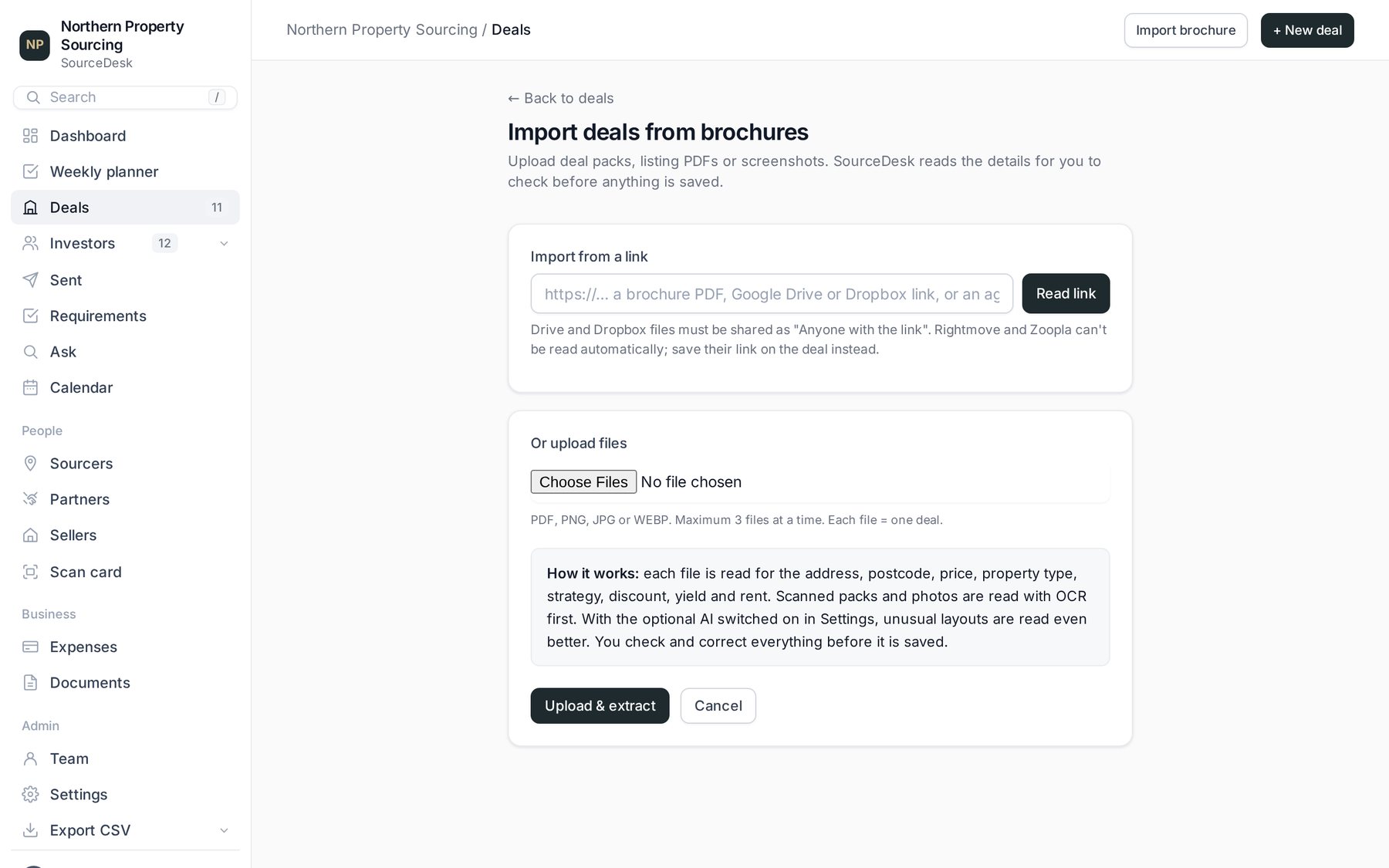
- Go to Deals and click Import brochure (top right).
- From a file: choose one or more deal-pack PDFs or photos (JPG, PNG), then click Upload & extract.
- From a link: paste a link in Import from a link and click Read link. It can be a link to a PDF, a Google Drive or Dropbox share link (shared as "Anyone with the link"), or the agent's own listing page.
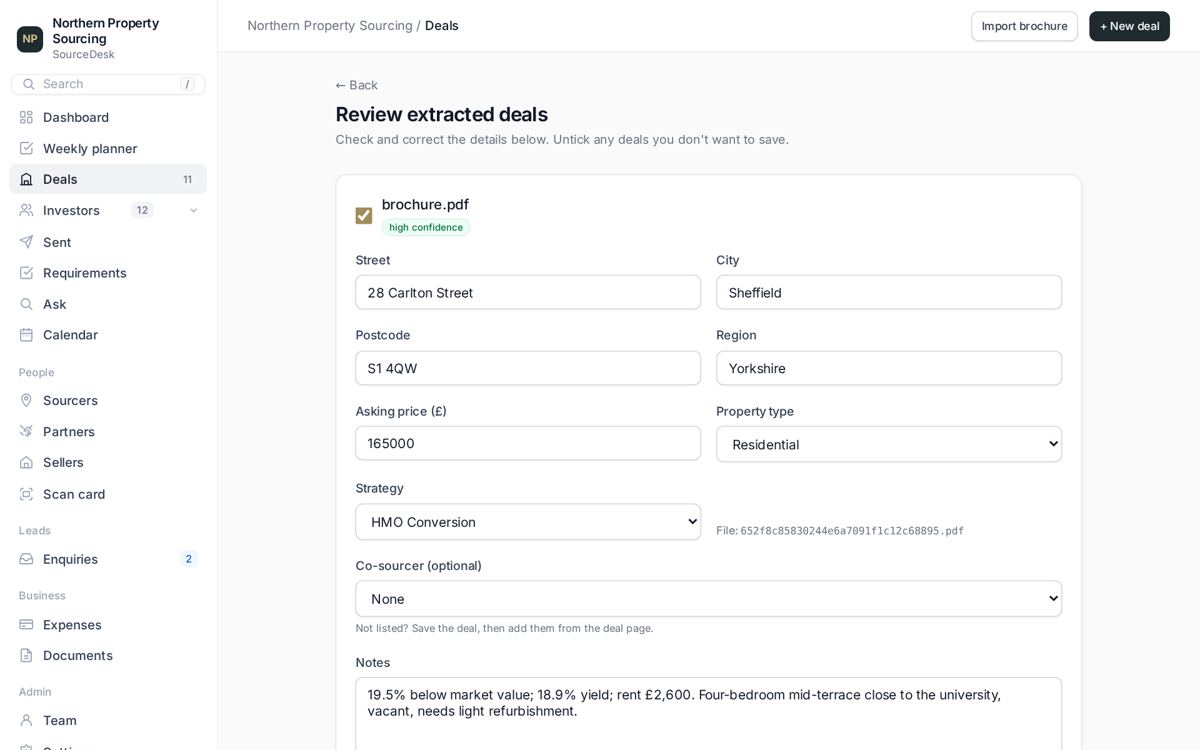
- Check what it found: address, postcode, region, price, property type, strategy, and notes such as discount, yield and rent. Correct anything that's wrong.
- Click Save. The deal goes into your pipeline with the brochure or link attached.
Rightmove, Zoopla and OnTheMarket don't allow their pages to be read automatically. For those, upload the agent's brochure instead.
Scan a business cardPhoto of a card in, contact on your CRM
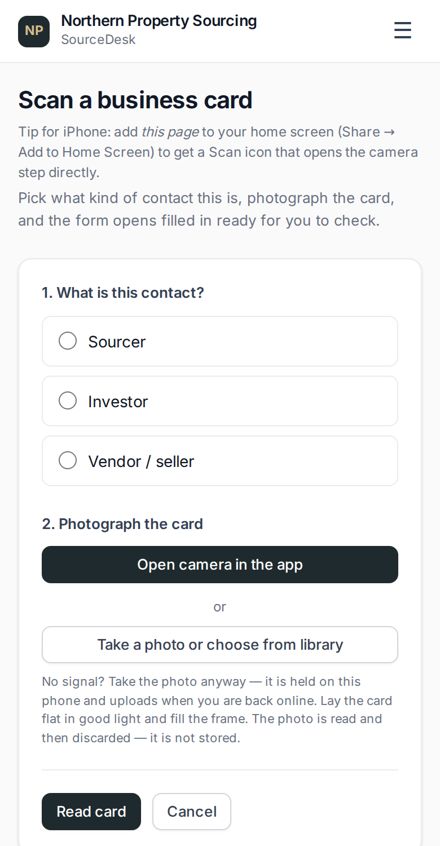
- On your phone, open Scan card from the menu (or your Scan icon, see On your phone).
- Choose what they are: Sourcer, Investor or Vendor / seller.
- Tap Open camera in the app and Take photo, or Take a photo or choose from library. Lay the card flat in good light and fill the frame.
- Tap Read card. The form opens with their name, company, title, email, phone and website filled in.
- Check it and tap Save. Nothing is saved until you do.
No signal at the event? Take the photo anyway. It's held on your phone and uploads when you're back online.
Add investors and what they buyThe criteria that power matching
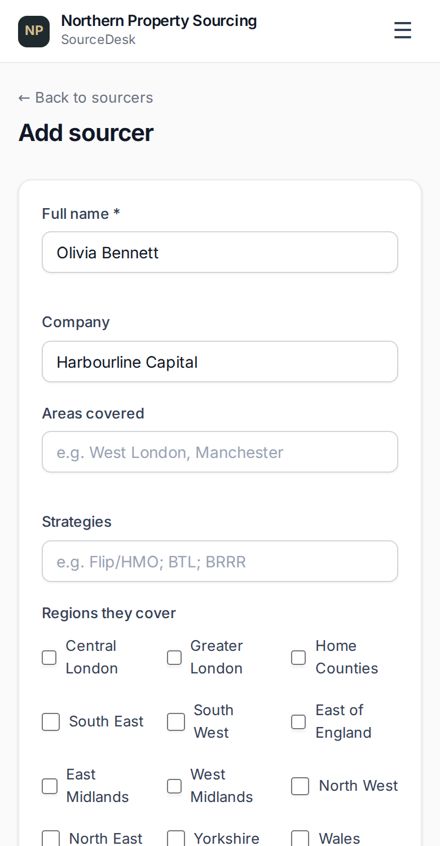
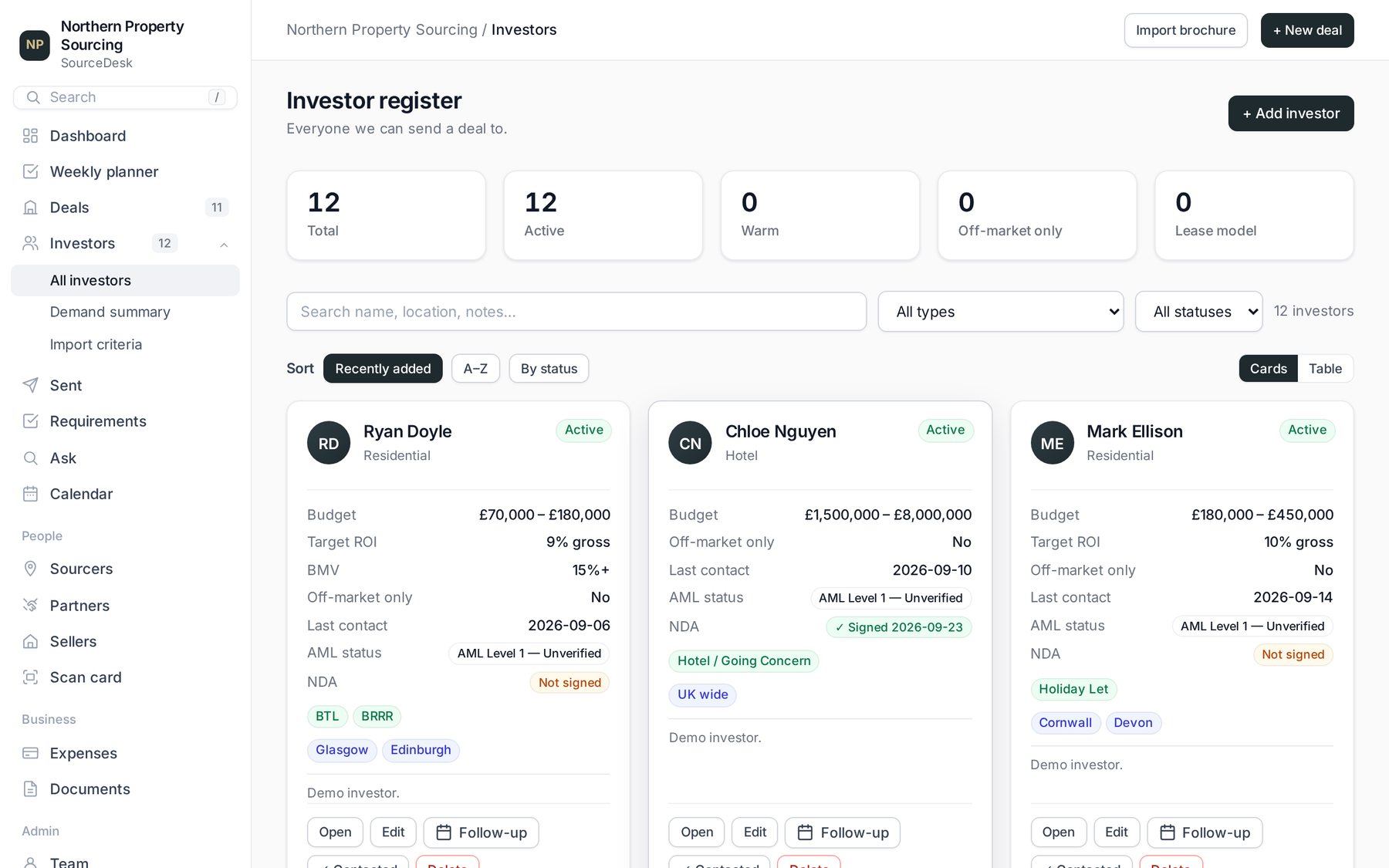
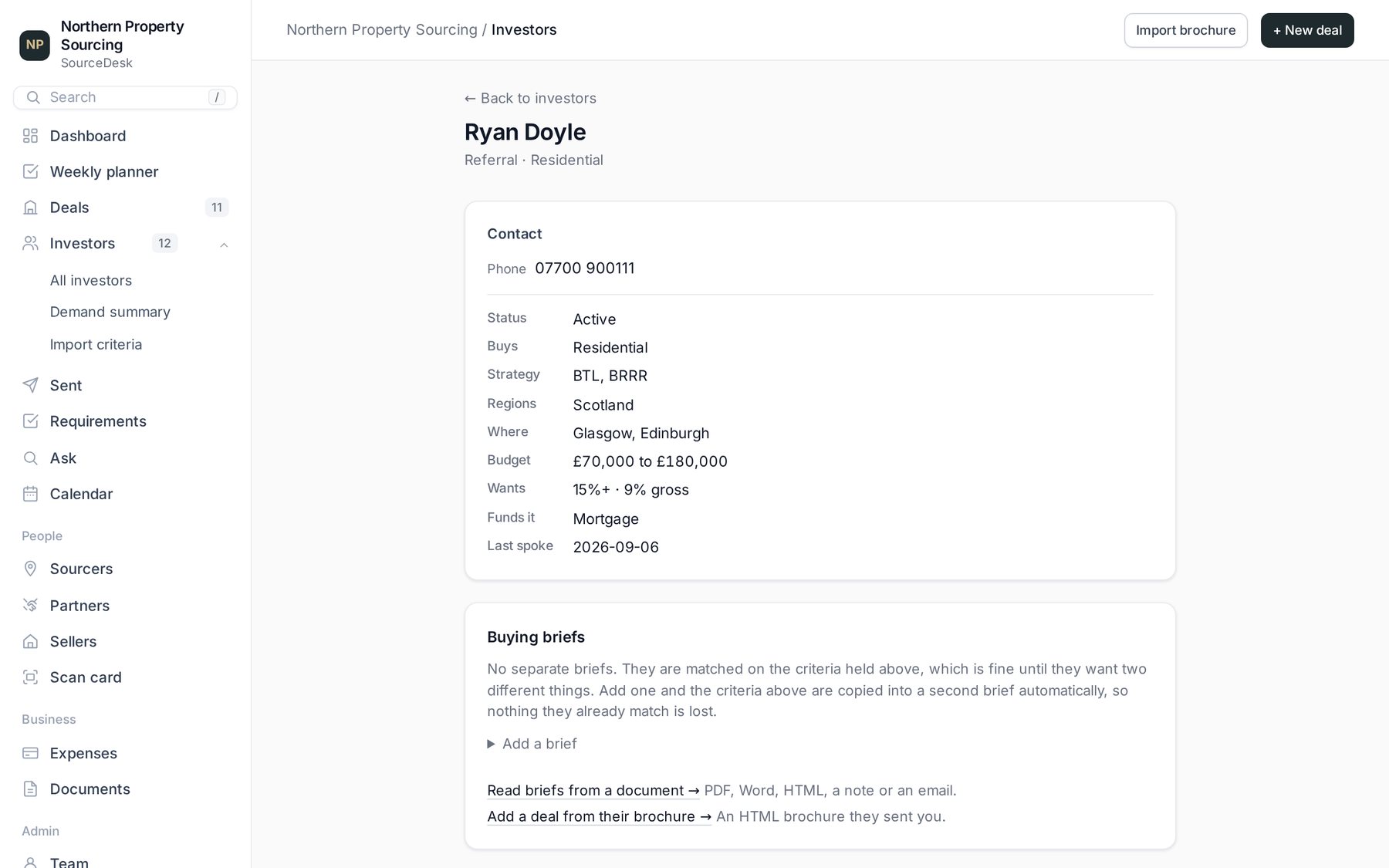
- Go to Investors and click + Add investor.
- Fill in their name and contact details, then tick what they buy: property types, strategies and regions, with budget, minimum discount and yield.
- Click Add. Every deal is now scored against what they want.
- Open an investor to see their criteria, their buying briefs and every deal sent to them.
Match a deal and send it to investorsWho it fits, and who opened the brochure
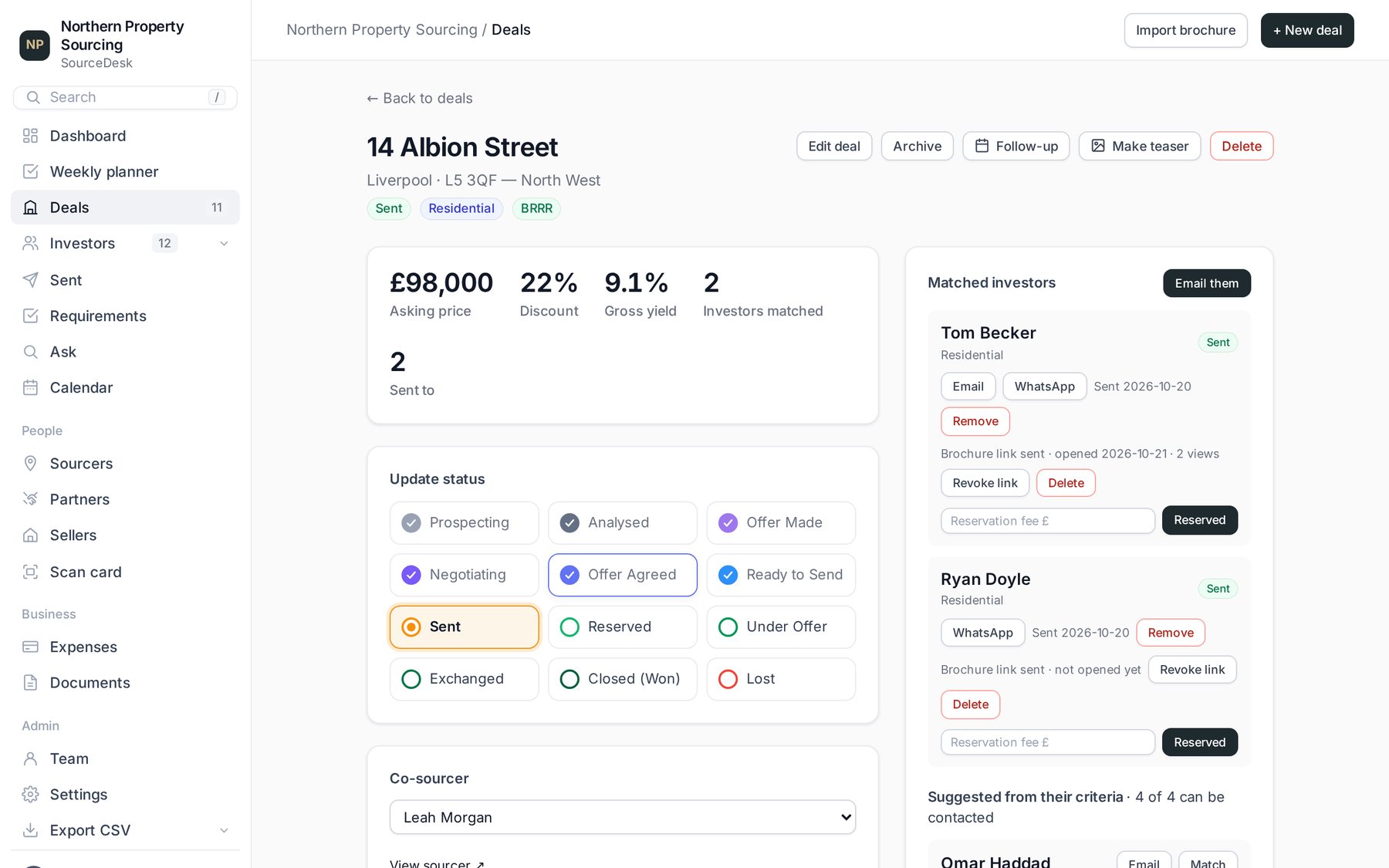
- Open any deal. On the right, Matched investors lists who it fits and why, strongest first.
- Click Email or WhatsApp next to an investor. Each investor gets their own private brochure link.
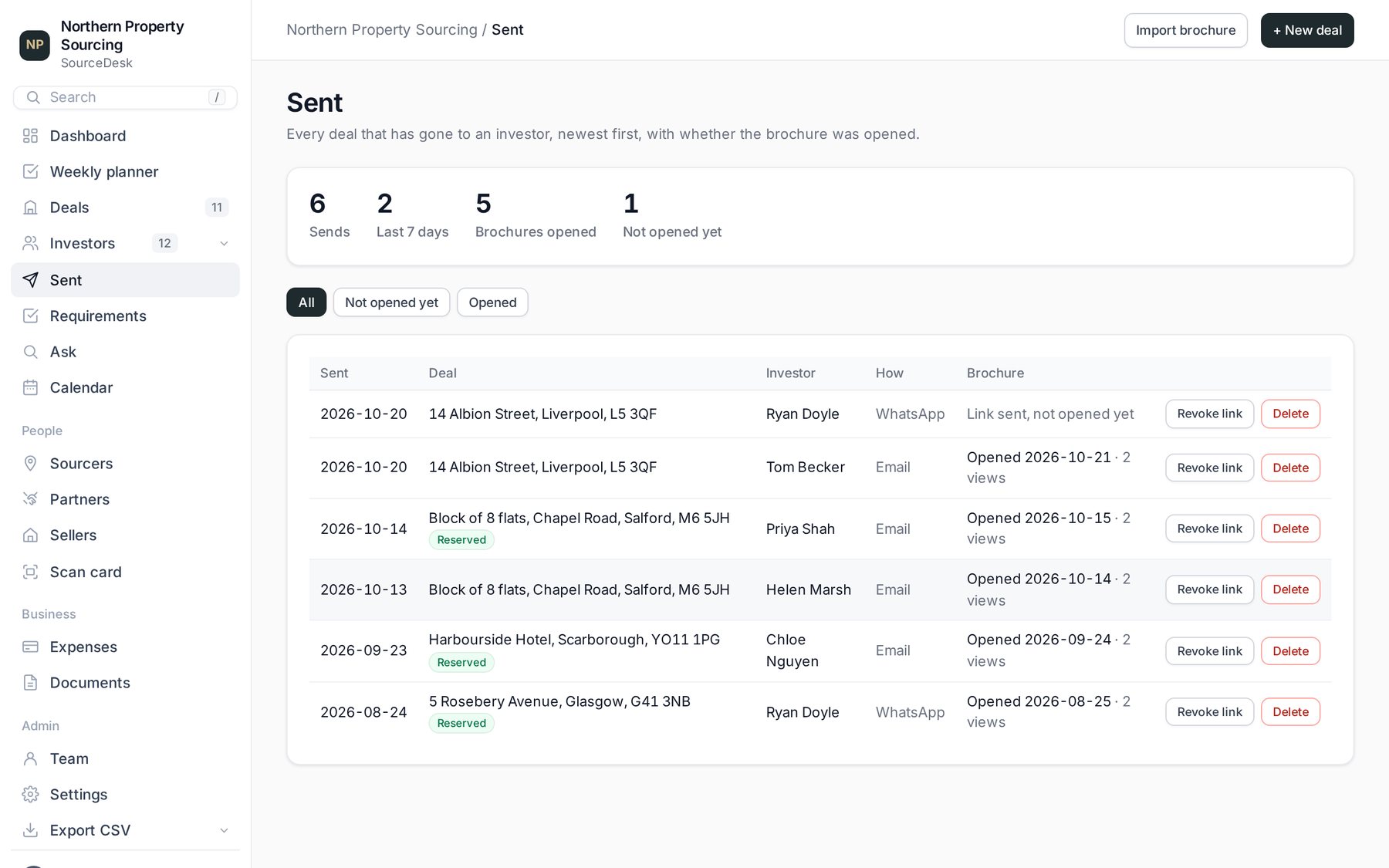
- Go to Sent to see every deal you've sent and whether the brochure was opened, when, and how often.
- Change a link's access at any time with Revoke link.
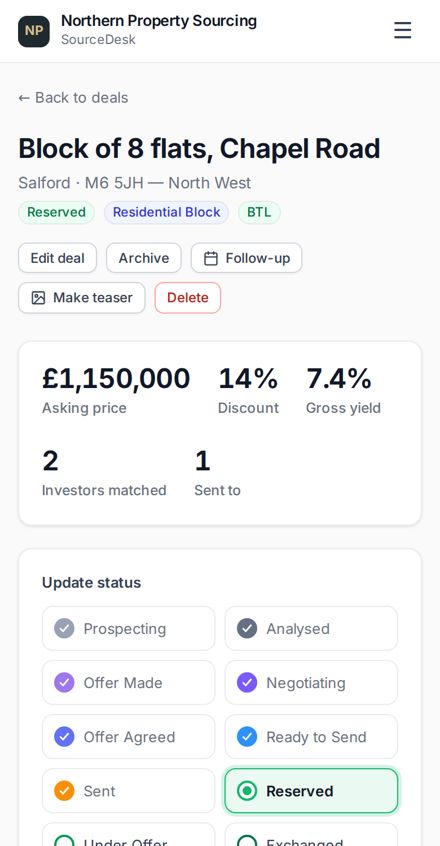
- Move the deal along under Update status: click the stage it has reached. Earlier stages get a tick, and the current one is highlighted.

Create an NDA or agreement and get it signedE-signature on any phone, no account needed
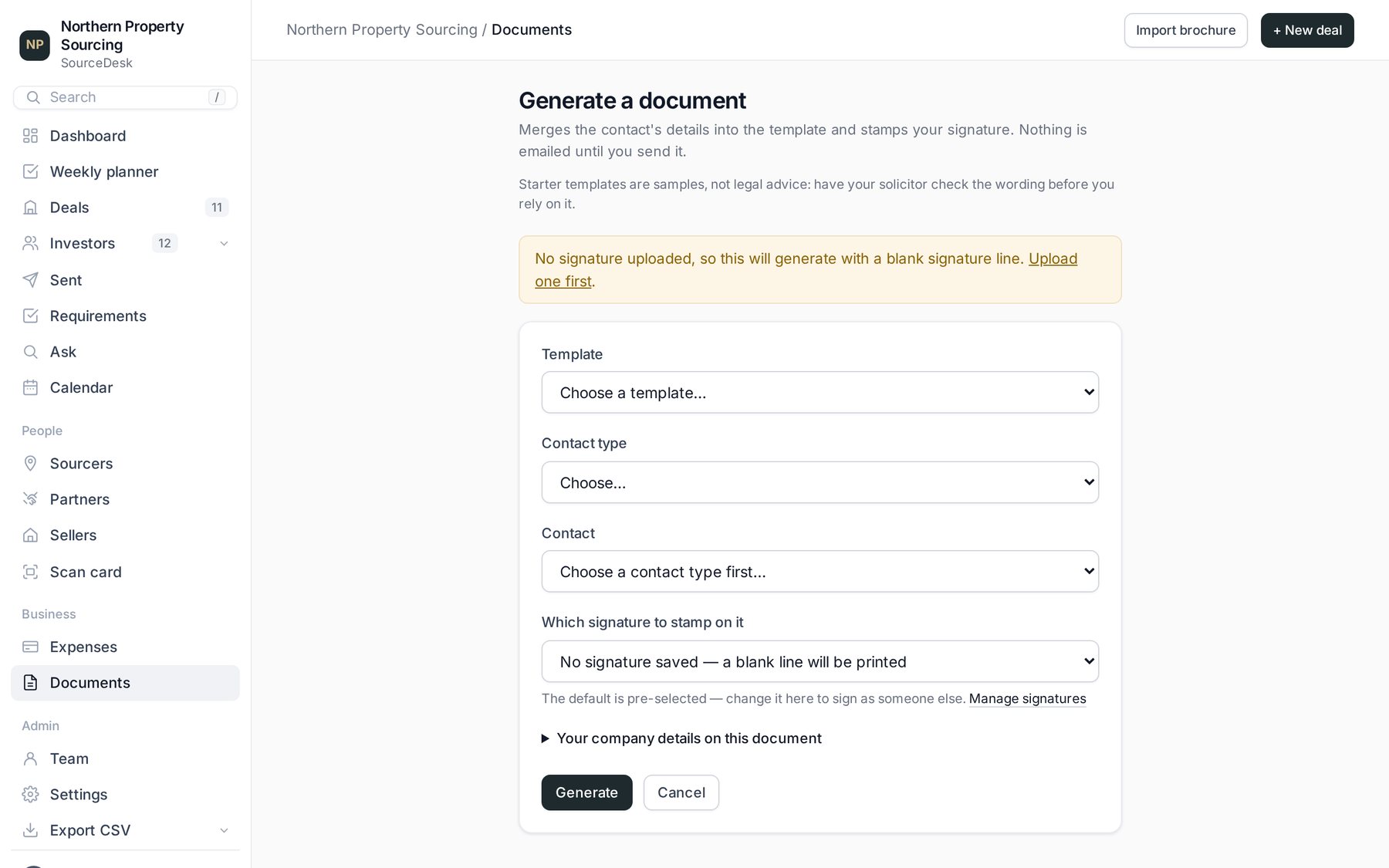
- Go to Documents and click + New document.
- Choose a Template, the Contact type and the Contact. Their name and details are filled in for you.
- If the template has terms (an introducer fee, a fee share, a rent), they appear on the form filled with a suggested figure: change them to what you agreed. Your company details come from Settings and can be changed for this one document. Then click Generate.
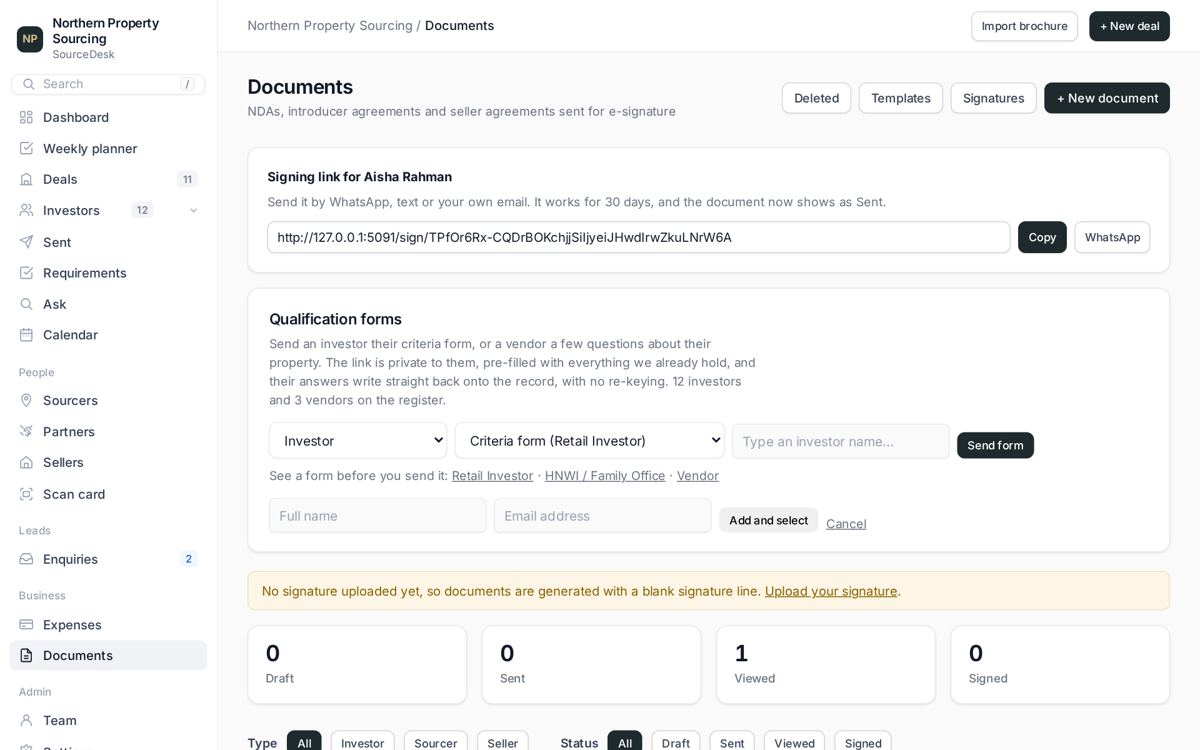
- Send it for signature, either way:
- Send emails it to them. This needs your email connected (see Connect your email).
- Get link gives you the signing link to Copy or send by WhatsApp. Works with no email set up.
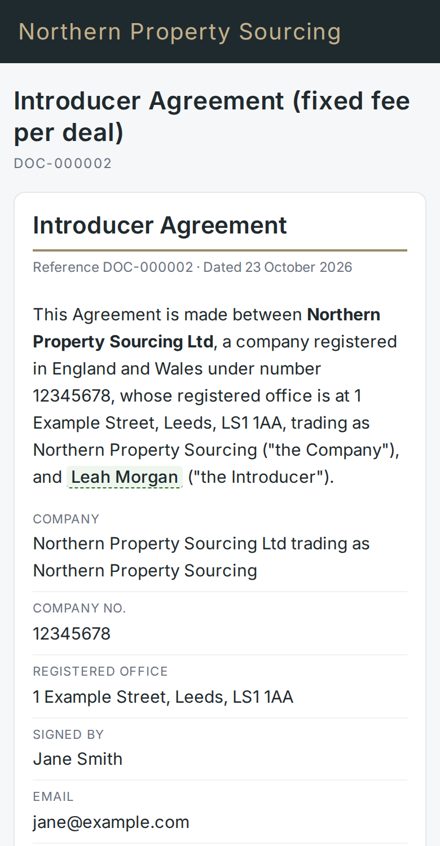
- They open the link, read the document, and sign by drawing or typing their name. You'll see it go from Sent to Viewed to Signed, and the signed PDF is filed on their record.
Connect your emailSo SourceDesk can email documents, forms and links for you
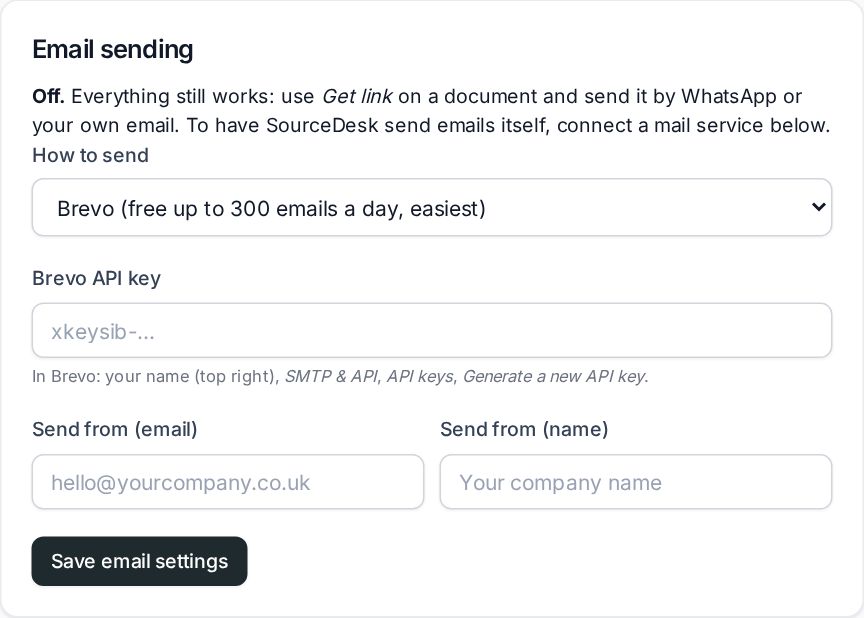
Optional. Without it, everything still works: use Get link and send links yourself. With it, emails go out from your own address. Set it up in Settings, under Email sending.
Option A: Brevo (recommended, free for up to 300 emails a day)
- Create a free account at brevo.com.
- Add the email address you'll send from: in Brevo, go to Senders, domains & dedicated IPs, then Senders, then Add a sender. Click the link Brevo emails you to confirm it.
- Make an API key: click your name at the top right, then SMTP & API, the API keys tab, and Generate a new API key. Copy it. It starts
xkeysib-. - In SourceDesk, open Settings. Under Email sending, choose Brevo, paste the key, and put your confirmed address in Send from (email).
- Click Save email settings, then Send me a test email. If it doesn't arrive, SourceDesk tells you why. Check your spam folder too.
If you own your company's domain, also set up Domains in Brevo (a few DNS records). Your emails are then far less likely to land in spam.
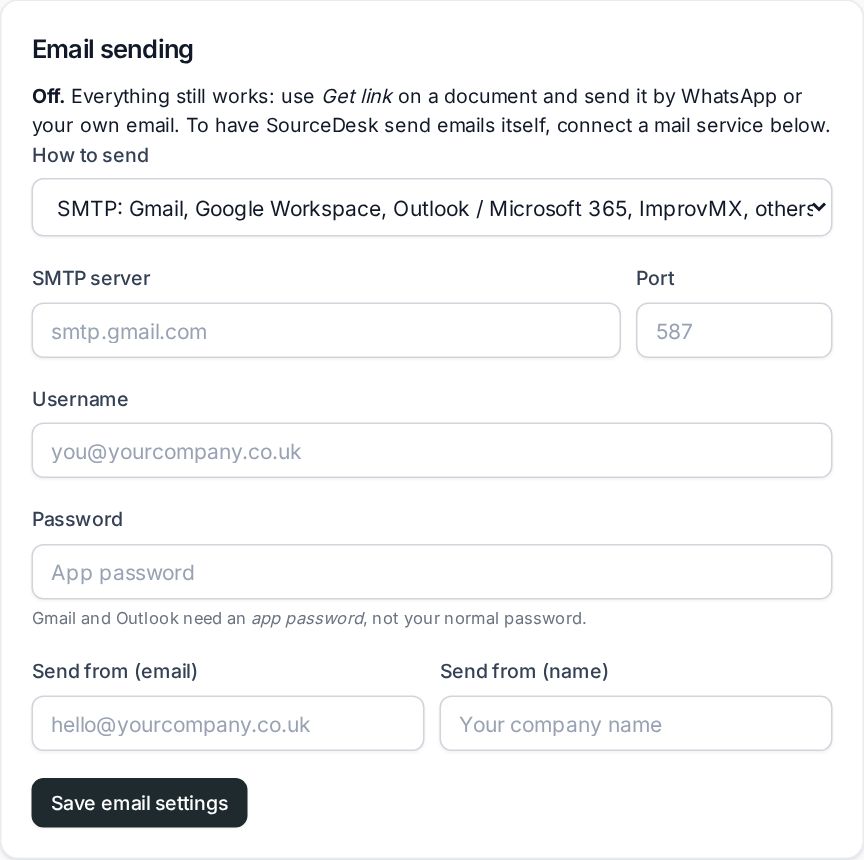
Option B: Gmail, Outlook, ImprovMX or another provider (SMTP)
Choose SMTP in Email sending and use these settings:
| Provider | SMTP server | Port | Username / password |
|---|---|---|---|
| Gmail or Google Workspace | smtp.gmail.com | 587 | Your Gmail address, and an app password: turn on 2-Step Verification, then create one at myaccount.google.com/apppasswords. |
| Microsoft 365 / Outlook | smtp.office365.com | 587 | Your full email address and password (or app password). Many Microsoft accounts block this. If the test email fails, use Brevo instead. |
| ImprovMX (paid plans) | smtp.improvmx.com | 587 | Your ImprovMX address, and the SMTP password you create for it in ImprovMX. |
| Brevo SMTP | smtp-relay.brevo.com | 587 | Your Brevo SMTP login and SMTP key (Brevo, SMTP & API, SMTP tab). |
Edit the documents, or add your ownChange the wording of any agreement
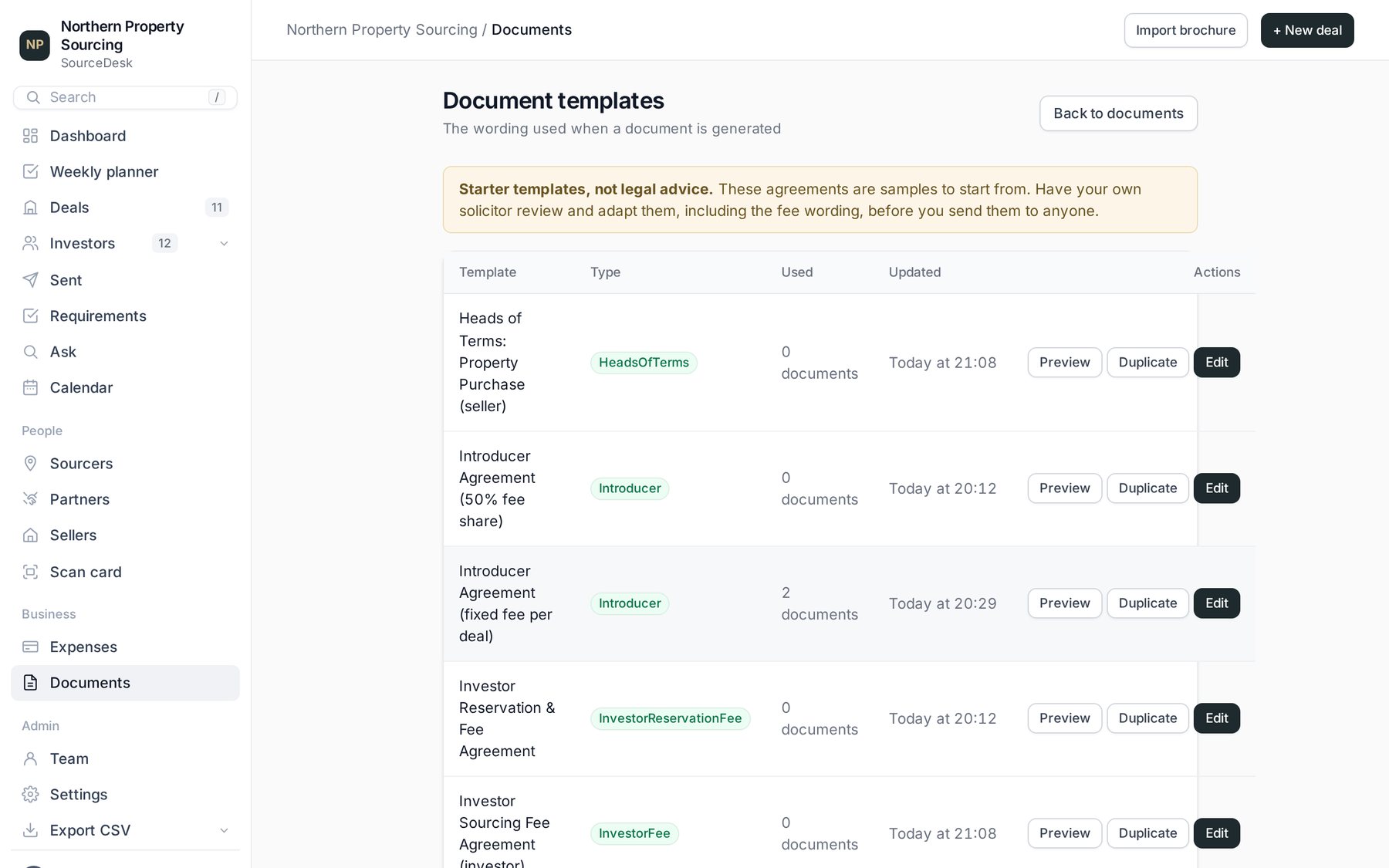
- Go to Documents and click Templates.
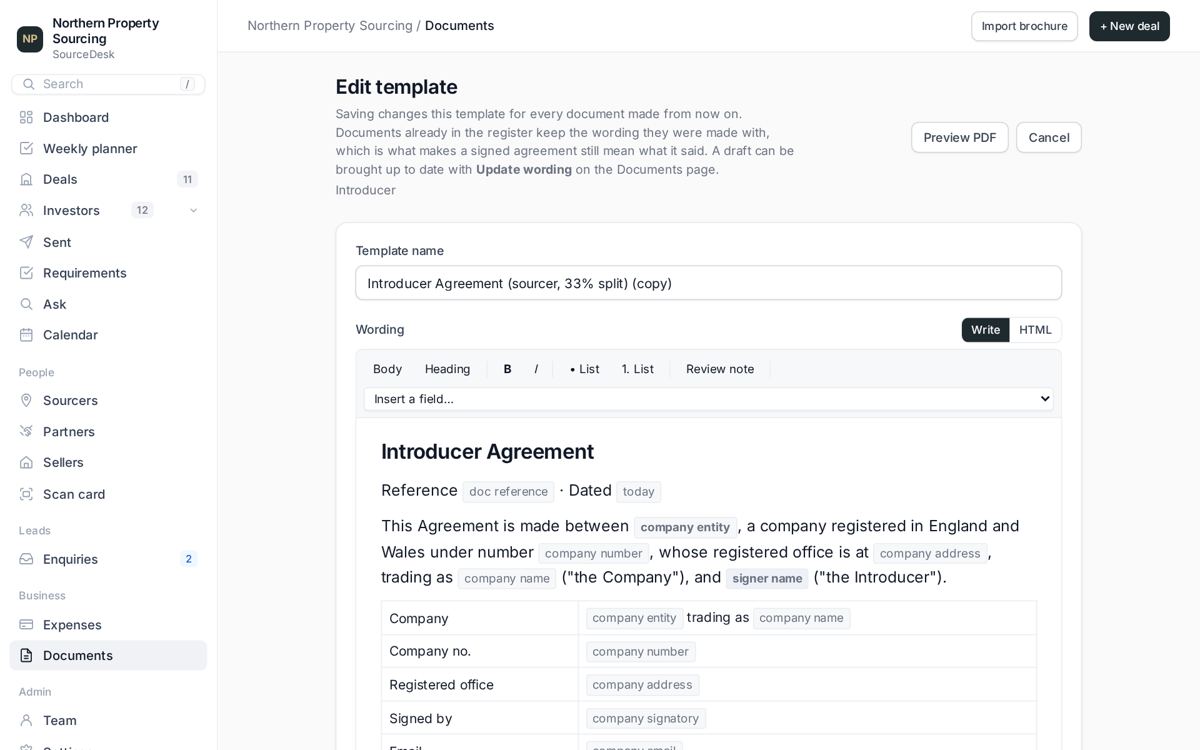
- To change an existing one: click Edit, change the wording, and click Save wording. Use Preview PDF to see how it prints.
- To use your own agreement: click Duplicate on the closest template, give the copy a new name, and paste in your own wording.
- The grey chips (company name, contact name, address, fee and so on) are merge fields. They're replaced with the real details when you generate a document. Keep them where the details should go. Add more with Insert a field….
Changes apply to documents you generate from now on. Documents already sent or signed keep the wording they were sent with.
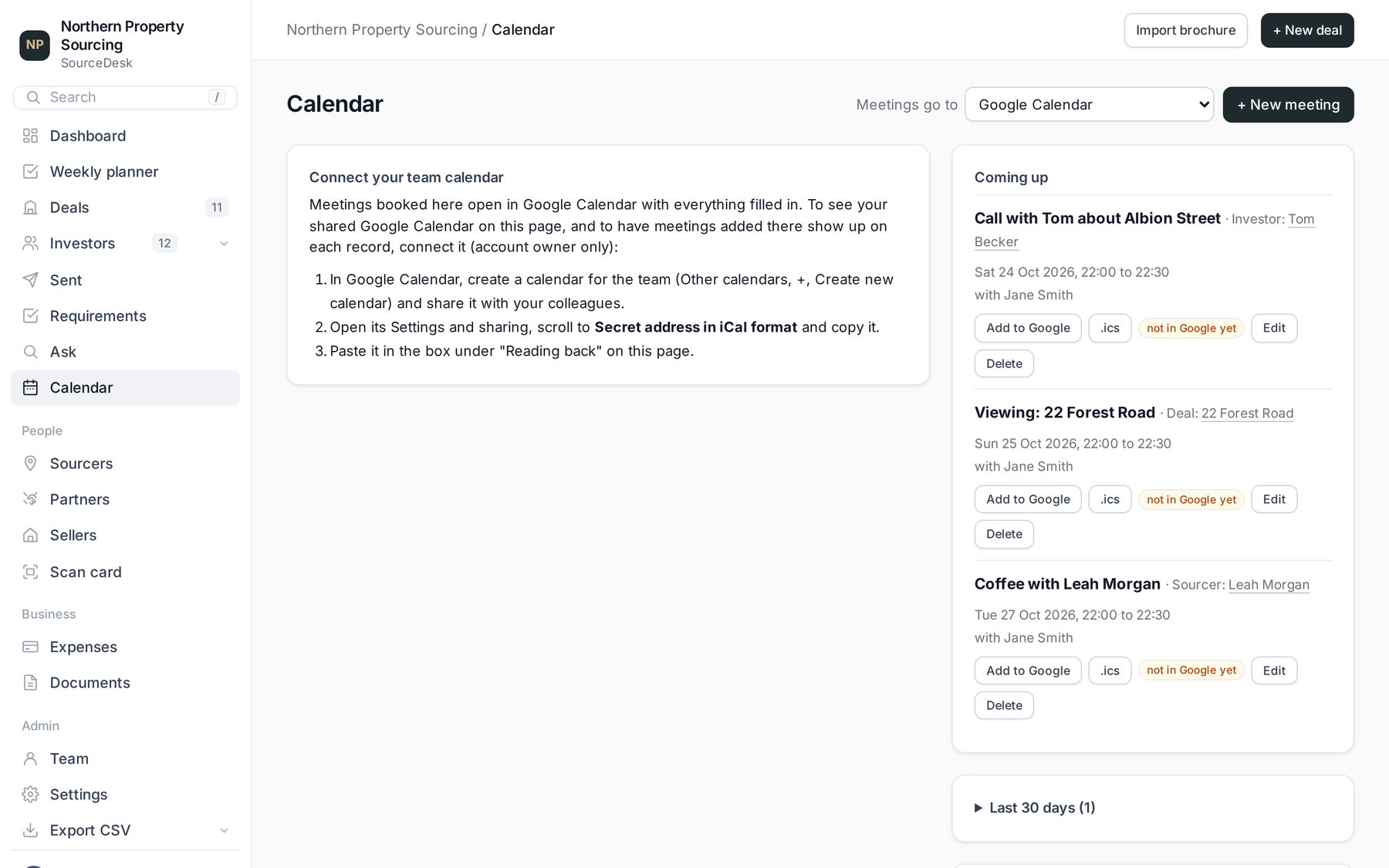
Calendar: Google, Outlook or AppleBook viewings and calls, see your meetings
First, choose your calendar
On the Calendar page, use Meetings go to (top right) to pick Google Calendar, Outlook / Microsoft 365 (a work or school email), Outlook.com (a personal Outlook, Hotmail or Live email) or Apple Calendar or another app.
Book a meeting
- On a deal or contact, click Follow-up. Or go to Calendar and click + New meeting.
- Set the title, day and time, and click Save and add to Google (or Outlook). Your calendar opens with everything filled in: press Save there.
- Using Apple Calendar? It saves and downloads a .ics file. Open it and the meeting is added. Every meeting also has a small .ics button for this.
See meetings from your calendar inside SourceDesk (optional)
- Google: make a work calendar (Other calendars, +, Create new calendar), open its Settings and sharing, copy the Secret address in iCal format.
- Outlook: in Outlook on the web, click the gear, then Calendar, Shared calendars, Publish a calendar. Choose Can view all details, click Publish, and copy the ICS link.
- Apple (iCloud): in Apple Calendar, right-click your work calendar, choose Share Calendar, tick Public Calendar, and copy the link.
Then paste it into the box under Reading back on the Calendar page and click Switch on. Meetings you add, move or cancel there show in SourceDesk within two minutes.
Use a work calendar, not your personal one, so private appointments stay private. Some company Outlook accounts have publishing switched off by IT. Booking still works.
Everything else
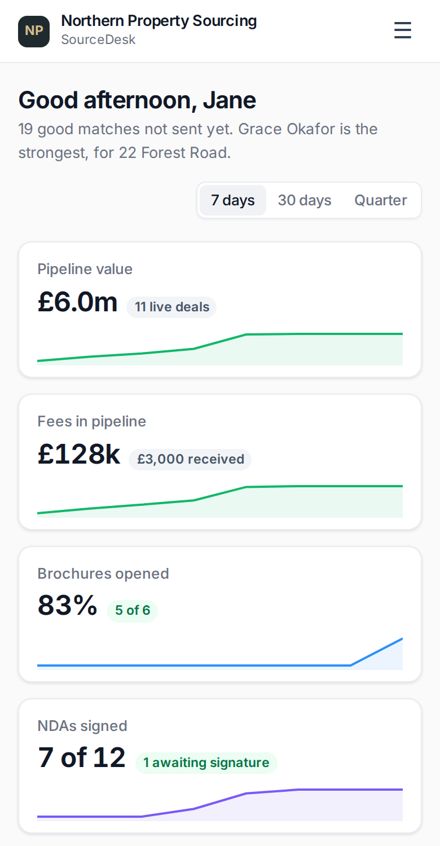
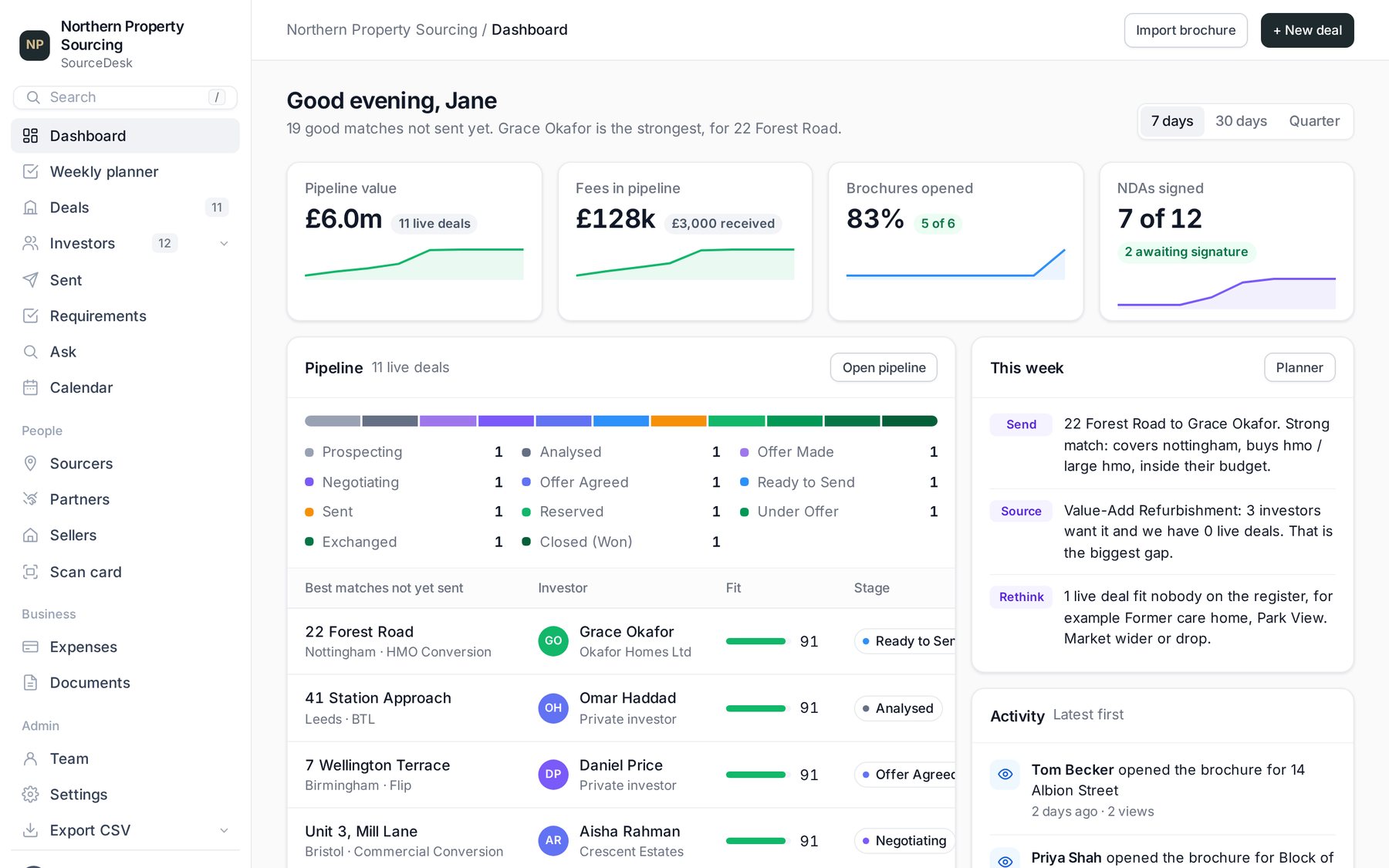
DashboardYour business at a glance
Pipeline value, fees, brochures opened and NDAs signed, the best matches you haven't sent yet, and recent activity. Switch between 7 days, 30 days and quarter at the top.
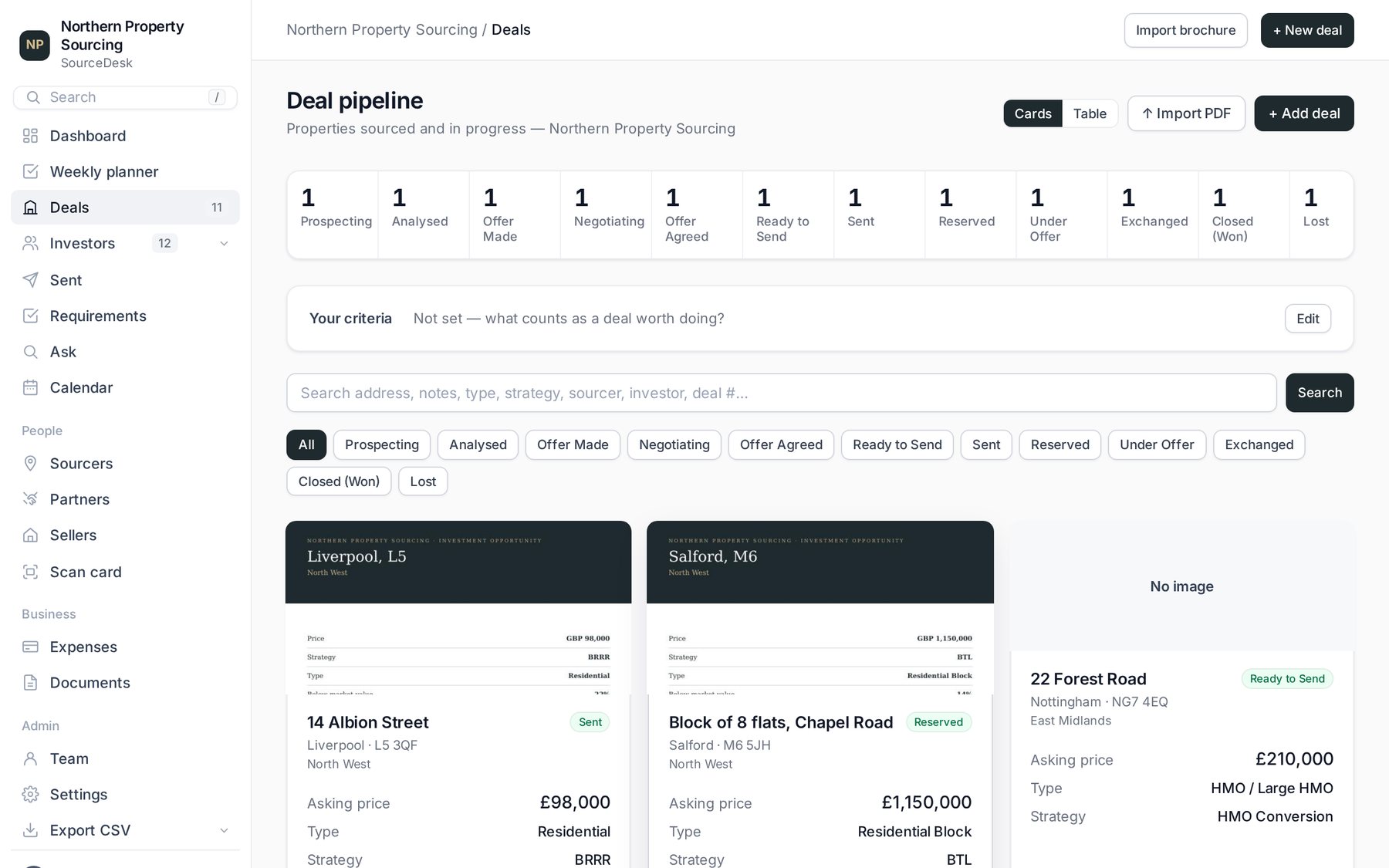
Deals pipeline and adding a deal by handEvery deal from lead to completion
- Deals shows every deal by stage. Click one to open it.
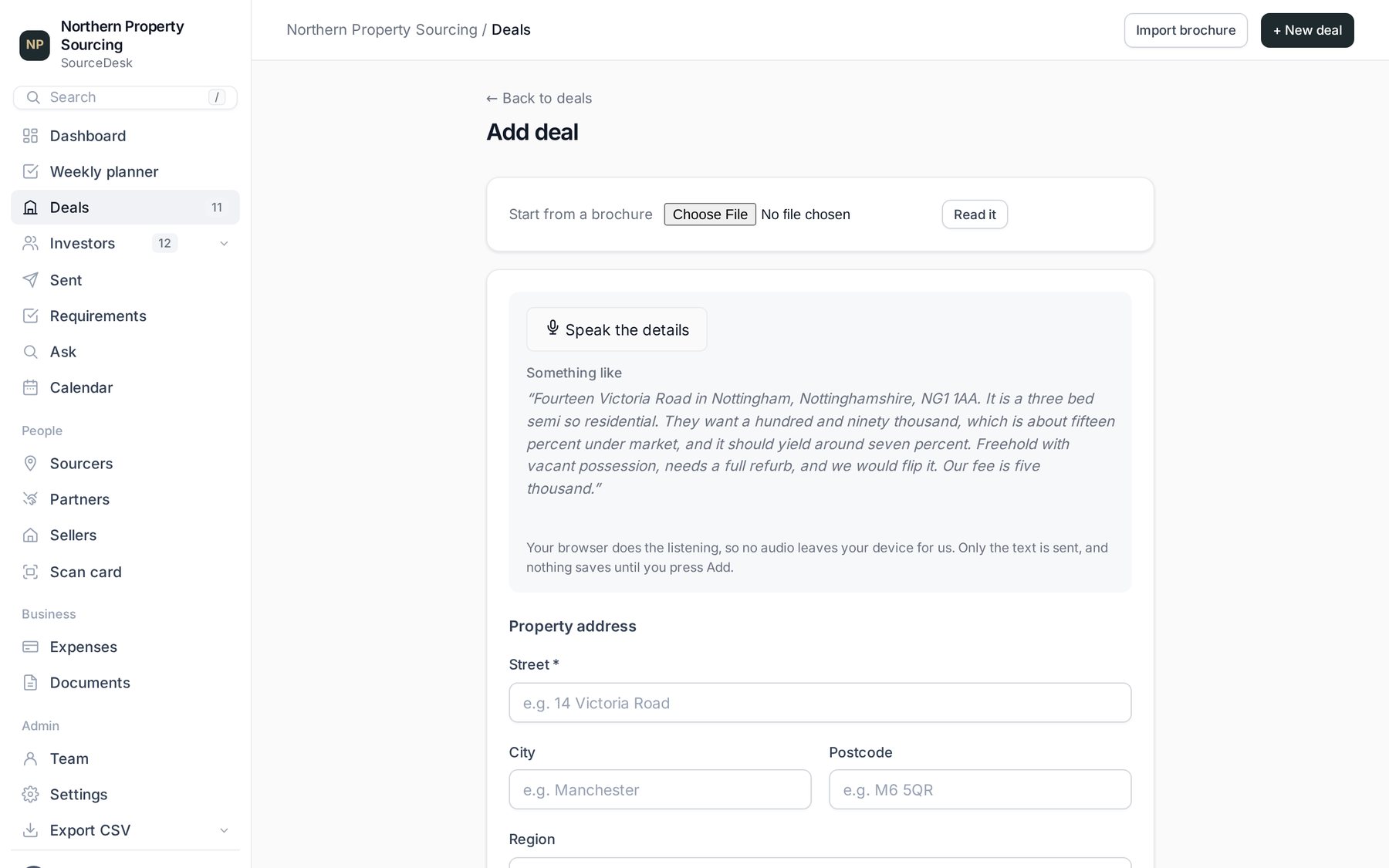
- To add one by hand, click + New deal, fill in the address, price, type and strategy, and save.
- On a deal you can add a Co-sourcer and fee split, notes, photos and documents, and set a Follow-up reminder.
Weekly plannerWho to chase this week
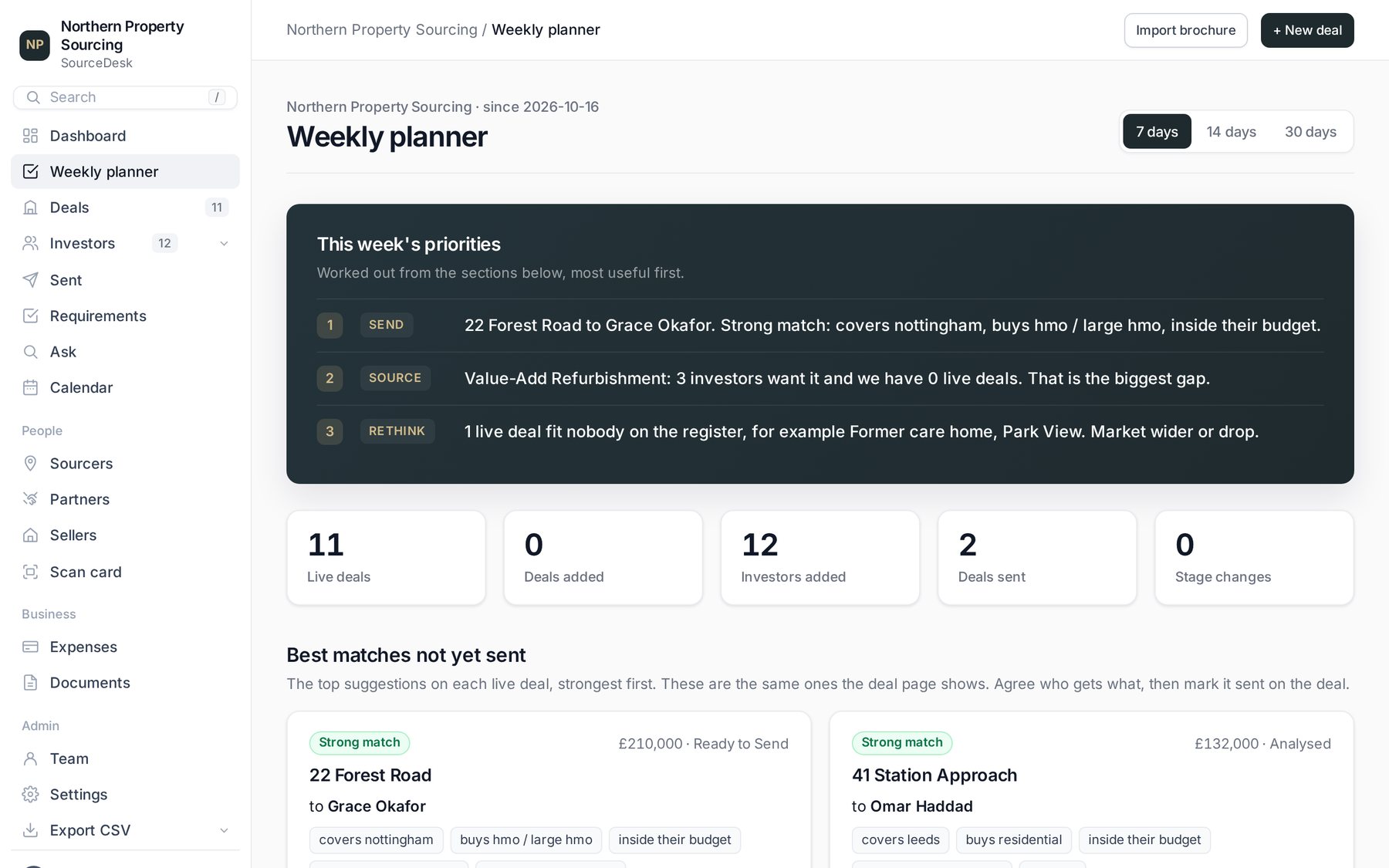
Open Weekly planner for this week's priorities: deals to send and to whom, gaps in what you're sourcing, and best matches not yet sent. Switch between 7, 14 and 30 days.
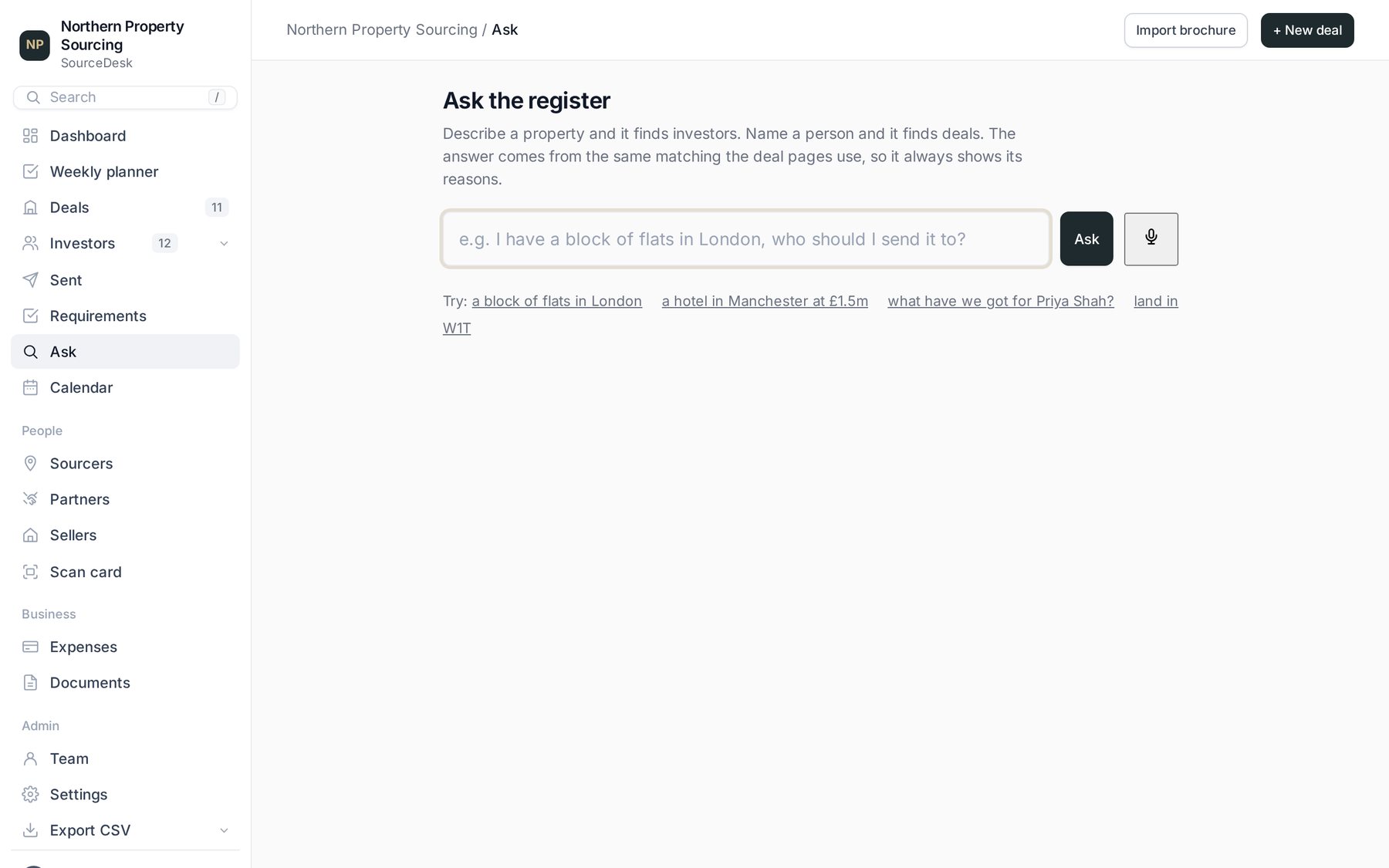
AskPlain-English questions about your register
Open Ask and type a question, then click Ask. For example: "I have a block of flats in London, who should I send it to?" or "what have we got for Priya Shah?". It answers from your own records.
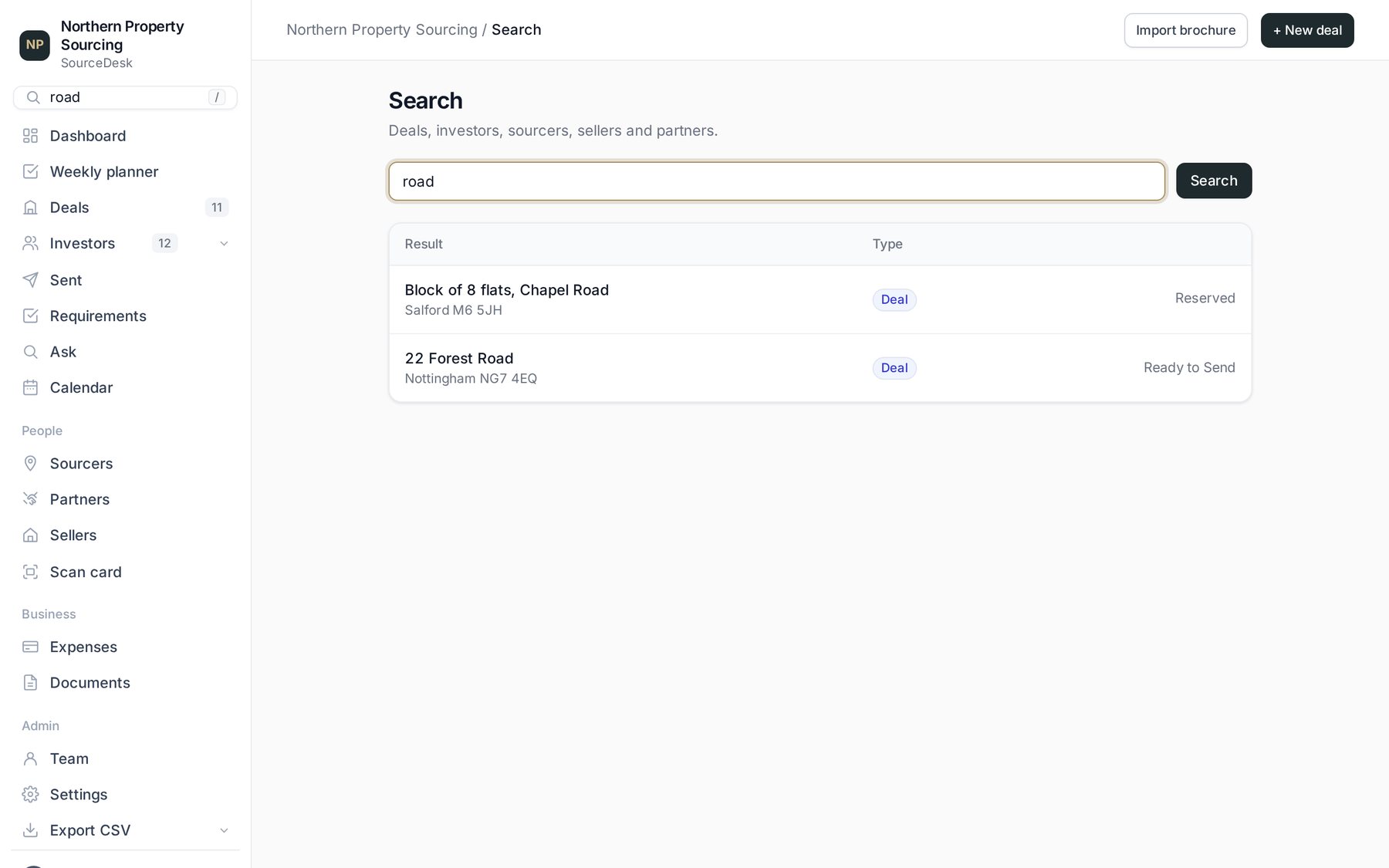
SearchFind anything
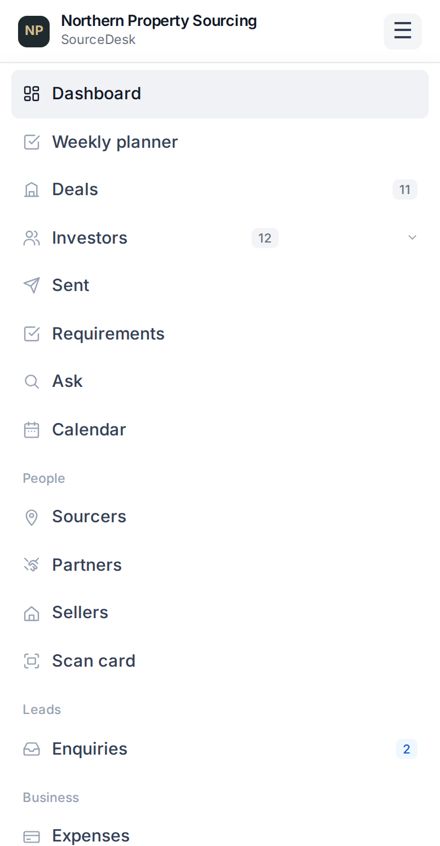
Type in the Search box at the top of the menu (or press /). It searches deals, investors, sourcers, sellers and partners, including the text inside brochures.
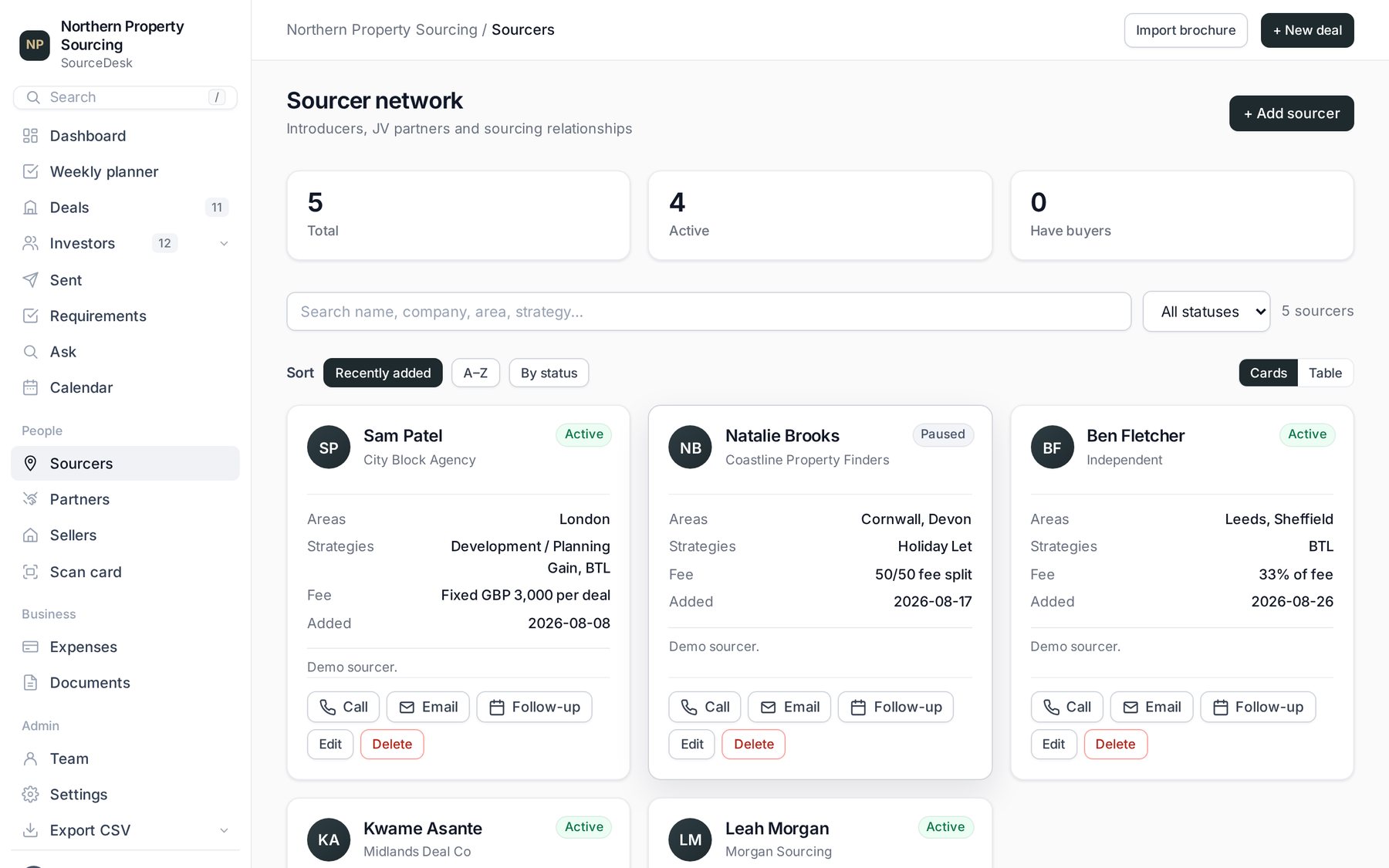
Sourcers, partners and sellersEveryone else you work with
- Sourcers: who sends you deals, the areas they cover, and their introducer agreement status. + Add sourcer.
- Partners: solicitors, brokers, builders and so on.
- Sellers: vendors and their properties.
Investor demandWhat your investors want, in one view
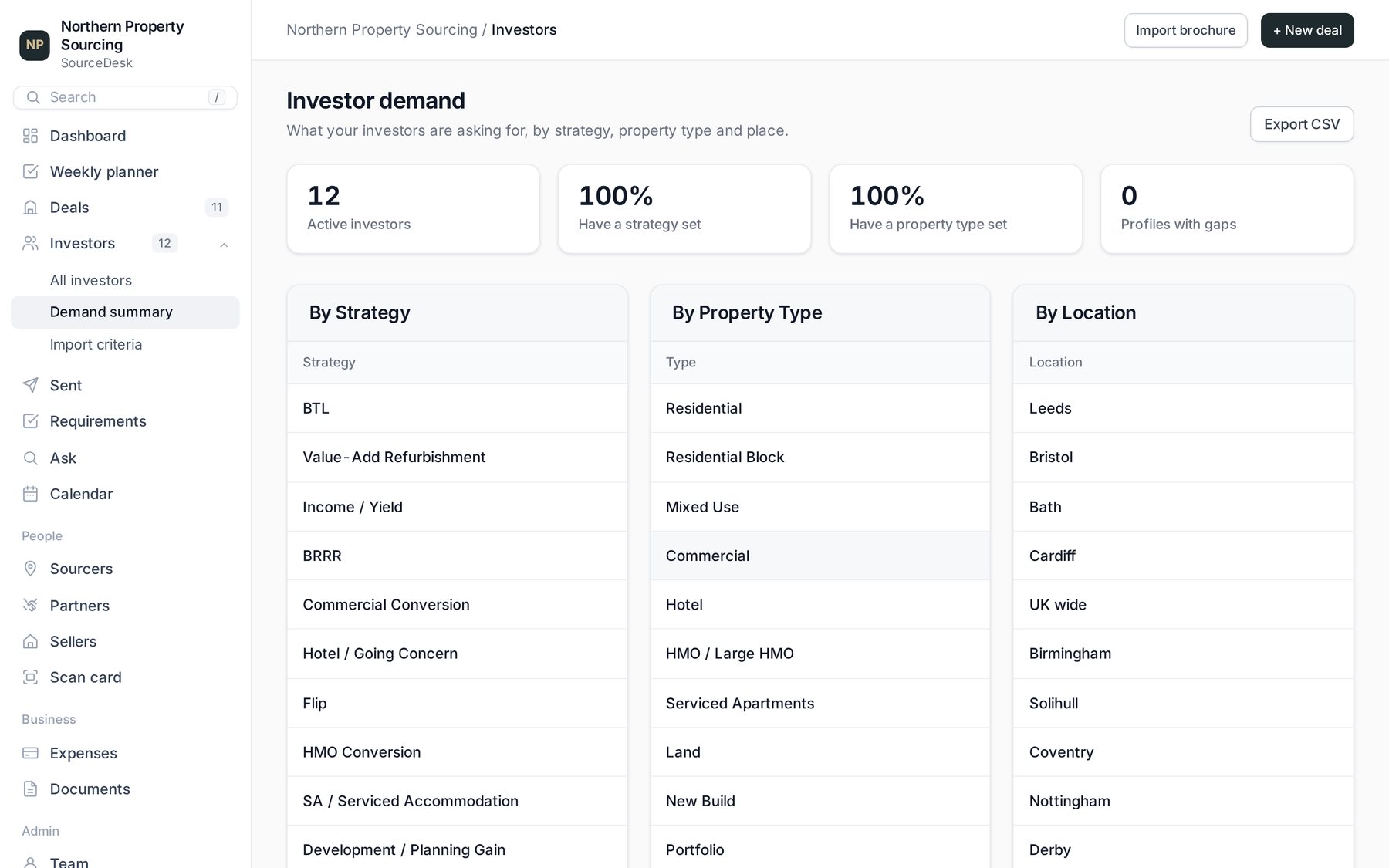
Under Investors, open Demand summary to see what your investors want by strategy, property type and location. It shows you what to source next. Export CSV downloads it.
ExpensesCosts and receipts, ready for your tax return
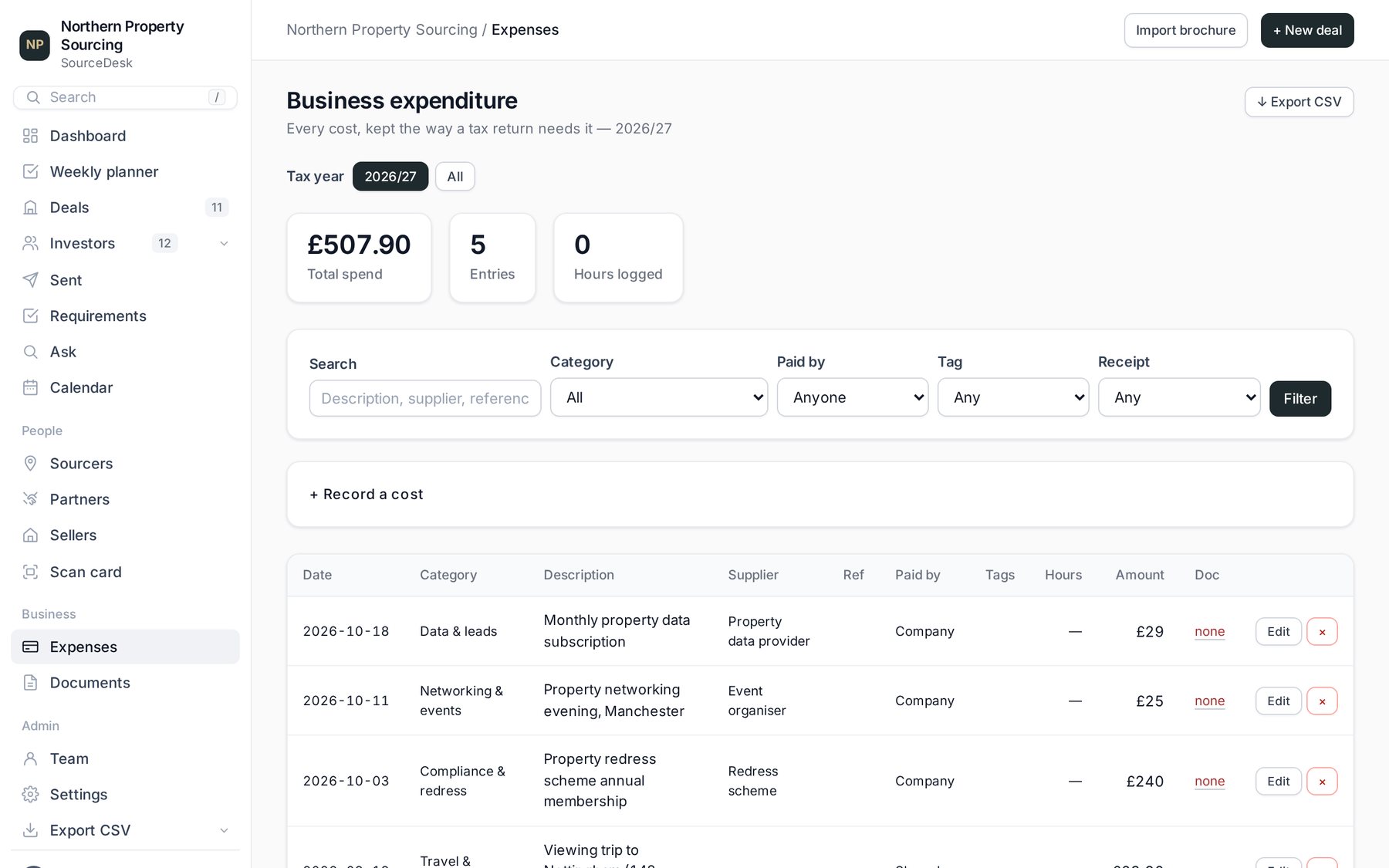
- Go to Expenses and open Record a cost. Add the date, category, amount and supplier, upload the receipt, and click Record.
- Filter by tax year, category or who paid. Export CSV gives your accountant everything.
Settings, demo data and backupsMake it yours
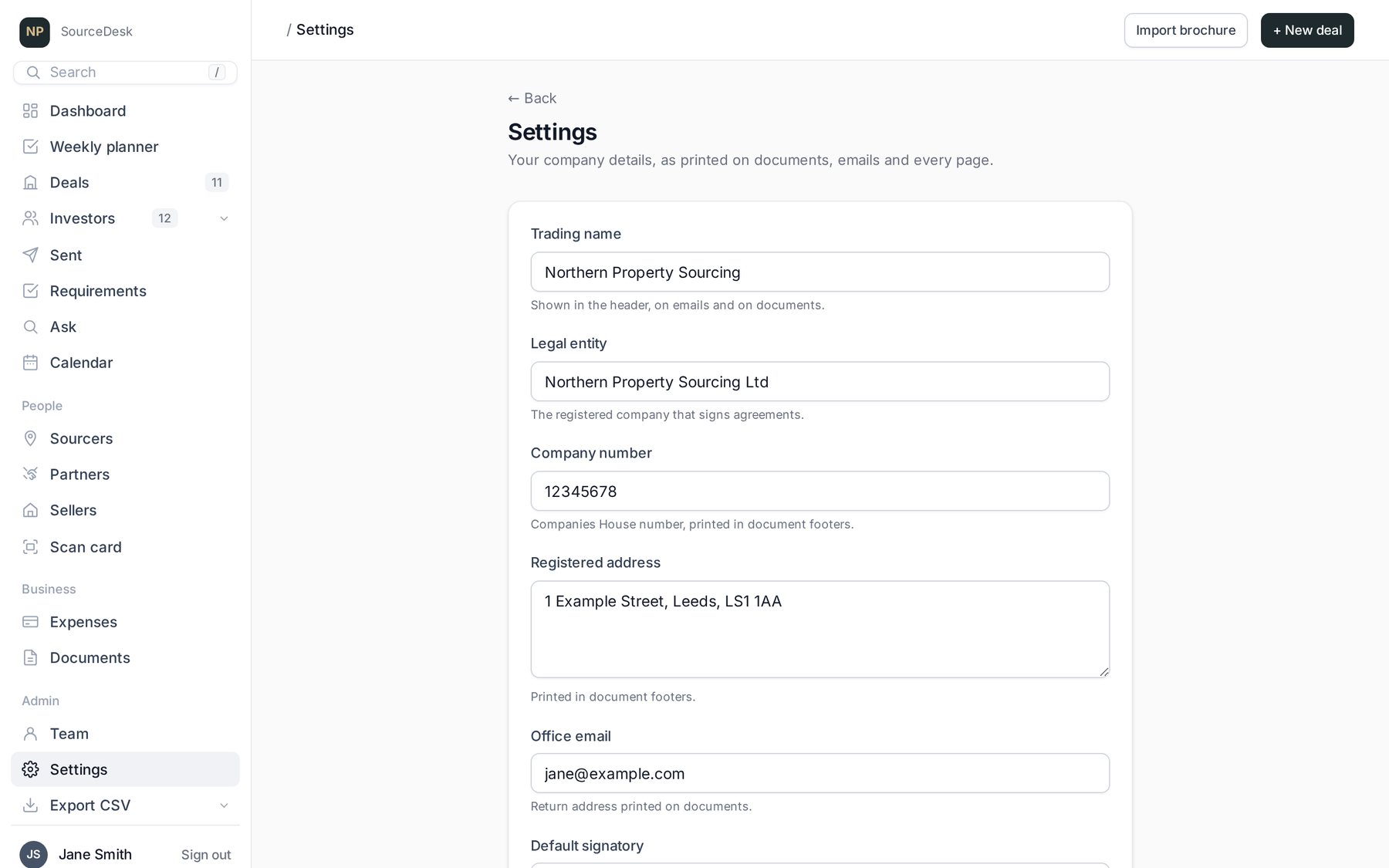
- Company details: your trading name, company, address and signatory, printed on documents and emails. Click Save settings.
- Email sending: see Connect your email.
- Demo data: click Remove demo data for a clean start. Your own records are kept.
- Backup: Download a backup saves everything in one file.